Quick Reference guide for Administrative Assistants (P-Card, Travel, RDD).
Common Terms
- PO = Purchase Order
- CO = Change Order (modifies a PO)
- RFQ = Request for Quote (<$75K)
- IFB = Invitation for Bid ($75K+, lowest cost wins)
- RFP = Request for Proposal ($75K+, highest score wins)
- P-Card = Procurement Card (for small purchases)
- RDD = Red Dragon Depot (e-procurement system)
- Preferred Sources = Corcraft, NYSPSP, & NYSID (must purchase if applicable)
- ROPC = Reasonableness of Price Checklist (≥ $2,500 purchases)
- Single Source Procurement = One or two vendors can supply commodity/service, but State agency selects 1 vendor over the other for reasons such as proprietary items; must document reasoning on ROPC.
- Sole Source Procurement = Only one vendor can supply; document reasoning on ROPC.
- NYSCR = NYS Contract Reporter – required for purchases ≥ $50,000 not off State Contract.
- OAG = Office of Attorney General (must sign all contracts ≥$75K)
- OSC = Office of the State Comptroller (must sign contracts ≥$75K)
- OGS = Office of General Services
- OGS State Contract = Vetted through RFP/IFB, available to all agencies
- Standard Voucher = State form for vendors using SSN or candidate reimbursement
- Travel Authorization Form = Required 2 weeks prior to travel
- Travel Voucher = State form submitted within 30 days of travel
- OTM = Over-the-Max Lodging Request form
P-Card 101
Refer to our FAQs or see below.
Temporary Dollar Limit Increase
- Email P-Card Administrator with supervisor approval and cc: Associate Director of Purchasing & Accounts Payable with:
- Supervisor approval
- ROPC if ≥$2,500
- copy of invoice
Sales Tax
- SUNY Cortland is tax-exempt (Tax ID: 14740026K). Refund requests: email vendor with tax exemption certificate.
- How to request sales tax to be refunded:
- Email or call the vendor requesting the refund and include our tax exemption certificate.
- Example Request for Refund:
Subject: Tax Refund Request (SUNY Cortland)
Body: Order #_____ indicates that tax was charged; however, SUNY Cortland is a tax-exempt institution. Please find our tax-exempt certificate attached for your records.
We are requesting a refund of $____ for the sales tax charged to this order, credited back to the original P-Card. Please provide an estimated refund date.
Once the refund has been processed, please provide an updated invoice for our accounting records. If you require any additional information to process this request, please let me know.
Thank you for your assistance.
*Be sure to include the updated invoice/receipt with your p-card log.
- Example Request for Refund:
- Email or call the vendor requesting the refund and include our tax exemption certificate.
- How to request sales tax to be refunded:
-
If the vendor requests a tax exemption number or Form ST-119.1 (Exempt Organization Exempt Purchase Certificate) from you, SUNY may give the vendor a copy of the letter from the Department of Taxation and Finance.
-
Contact the Purchasing AA for a copy of this letter.
-
Example email to Purchasing AA:
Subject: SUNY Tax Letter Request
Body: The vendor will not accept our tax exempt form.
Can you please provide me with the SUNY letter for the vendor that explains that we don’t require Form ST-119.1?
-
-
- For Tax Refund on Third Party Amazon Orders:
- Go to Your Orders in Amazon (always access from RDD catalog for Amazon Business Account).
- Locate the item that was charged tax and click the Contact the Seller button.
- If the button is not there, call Support at 1-888-280-9552.
- Enter the subject as Tax Exemption Refund Request.
- Include the order number and the amount charged.
- The seller is required to respond within 72 hours. The seller may ask for some additional information or they may simply issue the refund.
Card-Sharing
Definition: Card-sharing is when your p-card is used by anyone other than the individual whose name appears on the card. Card-sharing is expressly prohibited.
What counts as card-sharing?
-
- Letting a supervisor or colleague “place the order for you” by giving them your physical card or giving them the card details.
What to do instead: - If the P-cardholder is unavailable (out of the office), someone in the dept/office may reach out to the P-card Administrator and they will be able to review and place the order with their own P-card.
Why it’s not allowed: - Violates SUNY & NYS internal control standards.
- Increase risk of:
- Fraud
- Unauthorized purchases
- Data breaches
- Letting a supervisor or colleague “place the order for you” by giving them your physical card or giving them the card details.
Key takeaway: If you didn’t place the order yourself, it’s a violation.
Split Ordering
Definition: When a cardholder separates a single purchase into 2 or more P-card transactions (whether on the same day or over multiple days) with the intent to bypass procurement rules (i.e., single-transaction dollar limits, monthly limits, etc.).
Examples:
-
- Buying $1,000 of equipment by charging two $500 P-Card transactions when the single-purchase limit is $500.
- Making multiple smaller charges to avoid obtaining multiple quotes.
- Placing repeated orders for the same items over a short period when the total need was known in advance.
Why it’s not allowed:
-
- Violates SUNY procurement and internal control requirements.
Undermines fair competition and transparency.
May result in audit findings, card suspension, or disciplinary action.
- Violates SUNY procurement and internal control requirements.
Shipping Charges
Any shipping charges over $500 must be accompanied by not only the vendors’ invoice, but the shipping invoice also.
Credit Card Fees
Should not exceed 5% or $25 (whichever is less).
Common Dos and Don’ts
Do |
Don't |
|---|---|
| Use the P-Card only for official SUNY business expenses | Use for anything travel-related (airline, rental car, lodging) (pre-conference registration is the exception) |
| Follow your single-purchase and monthly limits (or ask for a temp increase) | Use for apparel (clothing) |
| Keep itemized receipts and supporting documentation | Use for furniture (see Furniture Policy) |
| Reconcile transactions (accurately and on time) | Use for prohibited items (alcohol, gifts, etc.) |
| Use for pre-conference registration | Delay reconciliation or certification |
| Use for ASC/CAS food/catering services (on-campus learning event or candidate lunch) | Use for off-campus food vendors (ASC/CAS is the exception) |
| See Allowable Use of Funds | Split purchases to stay under dollar thresholds / pay tax |
| Confirm no tax is included on invoice/receipt | Pay tax |
IT Purchases
IT purchases include: technology hardware, software, and any cloud or externally hosted systems, software and services.
What do I do if it’s IT-related?
-
-
- Go to the Tech Help section on MyRedDragon.
- Choose your request type
- IR will either place the order for you or provide you approval to make the purchase.
- If the latter, include their approval with your p-card packet.
- IR will either place the order for you or provide you approval to make the purchase.
- Choose your request type
- Go to the Tech Help section on MyRedDragon.
-
Certification
Cardholders will receive an email from the credit card company that new statement is available and ready to print.
IMPORTANT: DO NOT CERTIFY until you receive an email from the P-card administrator instructing you to do so.Why do I need to submit my P-card packet within 30 days or less to the P-Card Administrator?
- To ensure charges can be reviewed and disputed promptly (we have 60 days to dispute a charge).
- To ensure required backup documentation is on file and accessible to your supervisor in the event of an absence.
- To support accurate and timely reconciliation of accounts and financial reporting.
- To maintain compliance with P-Card policies and audit requirements.
- To help prevent late submissions, which can result in card suspension.
Digital Packet Submission
- Make sure files are legible and clear (to be read by an auditor)
- Make sure all documents are facing the right direction
- Scan both sides of the document and remove blank pages
- Log and certification sheet are expected to have an original signature (see Signature Types)
- Save file as [year (YYYY).packet month (MM) – Last name.First name]
Example: August 2025 packet for Casey Avery would be: 2025.08 – Avery.Casey
*Recommended P-card packet order: P-Card Log, bank statement, Certification page, then all backup documents.
How-to Videos
Travel 101
Travel 101 is currently in development and will be added later this year – stay tuned!
In the meantime, please reach out to the Travel Administrator at ext. 2306 or [email protected].

How to Use Red Dragon Depot
Login
- Login via myRedDragon (Faculty/Staff tab)
- Right-hand column, Important Links, under myRedDragon Resources, click Red Dragon Depot (Purchasing)
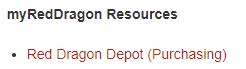
- Right-hand column, Important Links, under myRedDragon Resources, click Red Dragon Depot (Purchasing)
Catalog vs. Non-Catalog
- Catalog – 2 types:
- Hosted – lives on our system (Central Stores, NYSPSP)
- Punchout – takes you to their website to shop and then back to RDD to checkout.
- Use P-Card for Amazon & Staples
- Use PO for WB Mason
- Non-Catalog (all other vendors – PO only)
- Searching for Vendors under Non-Catalog Items
- Under Search Bar, Go to: Non-Catalog Items
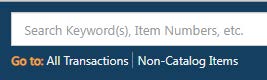
- Type part of the vendor’s name
- Less is more and don’t use punctuation.
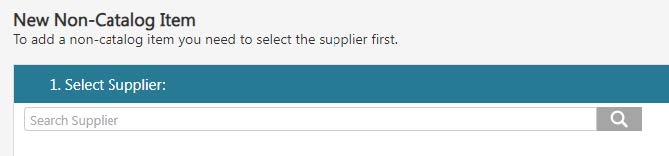
- Less is more and don’t use punctuation.
- Can’t find your vendor?
- Request a W-9 from the vendor and send it to Purchasing.
- Type part of the vendor’s name
Creating a PO
- Non-Catalog Item (Catalog steps are similar, but skip to Checkout after punching out to website)
- Search & select vendor
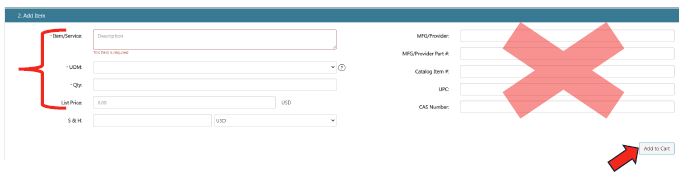
- Add Item(s)
- Fill out left side:
- Item/Service
- UOM = EA
- Qty
- List Price
- Click Add to Cart
- Add more items, if needed.
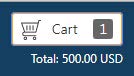
- Proceed to Cart & Checkout

- Fill out left side:
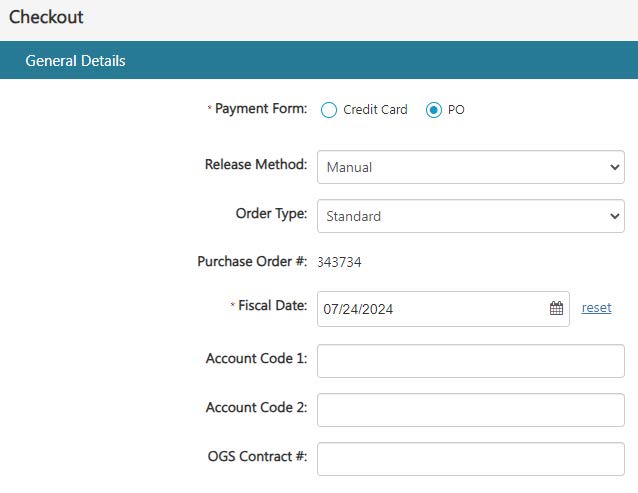
- General Details Tab
- Payment Form = PO
- Add Account Code 1 and Account Code 2 (if splitting accounts, not common)
- Add OGS Contract #
- Add Vendor Quote #
- Continue
- Continue
- Delivery Details Tab
- Select Central Receiving (and confirm the attention to is correct for Central Receiving to deliver to you on campus)
- Continue
- Billing Details Tab
- Select Accounts Payable
- Continue
- GL Details Tab
- Enter Account # in the favorite’s Bar or click on the + symbol to search for Account #(for 1st time using an account #)
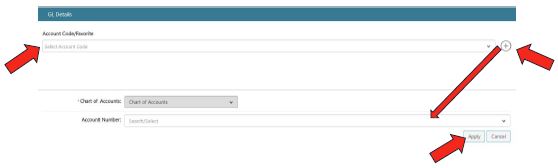
- Apply
- Continue
- Enter Account # in the favorite’s Bar or click on the + symbol to search for Account #(for 1st time using an account #)
- Line Item Details Tab
- Notes & Attachments
- Can add Internal Note and/or Attachments on the Line Item itself or off in the right-hand column
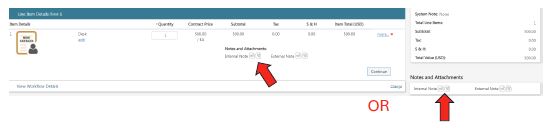
- Can add Internal Note and/or Attachments on the Line Item itself or off in the right-hand column
- Notes & Attachments
- View Workflow Details Tab
- Shows approval status (if you don’t see your approver listed, contact Casey Avery priorto submission).
- Click Submit
Transaction Released Email
-
- Email from [email protected]

NOTE: PO is not immediately sent to vendor
- Purchasing must first encumber funds in the SUNY system and then the Purchasing AA willemail or fax PO and cc: PO requester.
- Email from [email protected]
Pending Transaction(s)
-
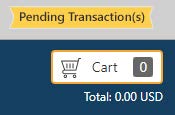
- If you see the Pending Transaction(s) banner, you have not submitted your order yet.
- Click on the banner to select the PO
.jpeg?language_id=1)
2.jpeg?language_id=1)
- If you no longer need the order, you can click on the icon and delete the transaction.
Order Summary
-
- Search orders (old & new) – by requestor, PO#, vendor, etc.
- View Workflow – see dates approved or who with currently
- Active = current approver PO is with
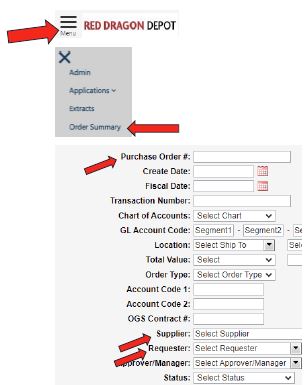
- Active = current approver PO is with
- View Workflow – see dates approved or who with currently
- Search orders (old & new) – by requestor, PO#, vendor, etc.
Receiving
-
- Once item/service is actually received, immediately go into RDD to receive it.
- Once order is completely received or confirmed nothing more to receive, Close order.
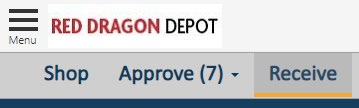
- To Receive:
- Select your PO
- Under Line Item Details Tab, receive either against the Quantity or Dollars andclick Update
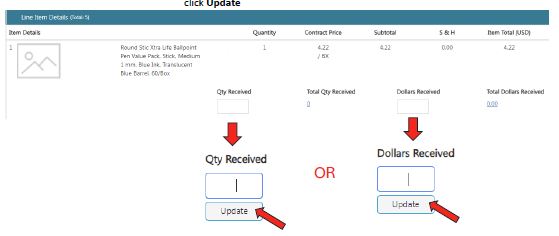
NOTE: AP cannot pay invoice until the item/service is received in RDD.
- Under Line Item Details Tab, receive either against the Quantity or Dollars andclick Update
- Select your PO
- Once order is completely received or confirmed nothing more to receive, Close order.
- Once item/service is actually received, immediately go into RDD to receive it.
Standing Orders
-
- Must add “Standing Order” verbiage in the Item/Service Description
- Qty should = 1 with total estimated dollars to spend over the FY (can always add funds with a CO)
- Receiving against Dollars as invoices come in
Change Orders (CO)
-
- Used to increase or decrease PO amounts
- Complete the Change Order Request Form
- Used to increase or decrease PO amounts
Changing Departments/Offices/Approvers
-
- Immediately notify the Associate Director of Purchasing and Accounts Payable (Casey Avery) of the following changes:
- Location on campus changes
- Approver changes
- Name changes
- Immediately notify the Associate Director of Purchasing and Accounts Payable (Casey Avery) of the following changes:
RDD Username Info
-
- First Name will be your first and last name
- Last Name will be your location on campus
- DO NOT change this as it affects your POs and items may not be delivered to the correct place from Central Receiving.
Paying an Invoice
-
- DO NOT upload invoices to RDD (unless approved as an NOR – see NOR Policy)
- Purchasing without a PO in place bypasses the purchasing process and could result in having to use other funding sources to pay invoice.
- Invoices should be emailed directly to [email protected].
- AP will not see an invoice attached to a PO after the PO has already been approved.
- DO NOT upload invoices to RDD (unless approved as an NOR – see NOR Policy)
RDD Training Manuals
- User Manual
- Order Summary
- Approver Manual
- Receiving Manual