1. Sign in to your (the student’s) myRedDragon account. For assistance with signing in, select one of the help links. 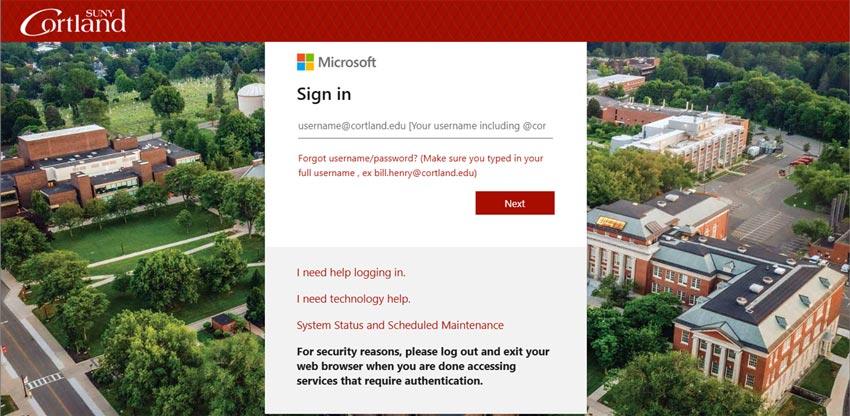
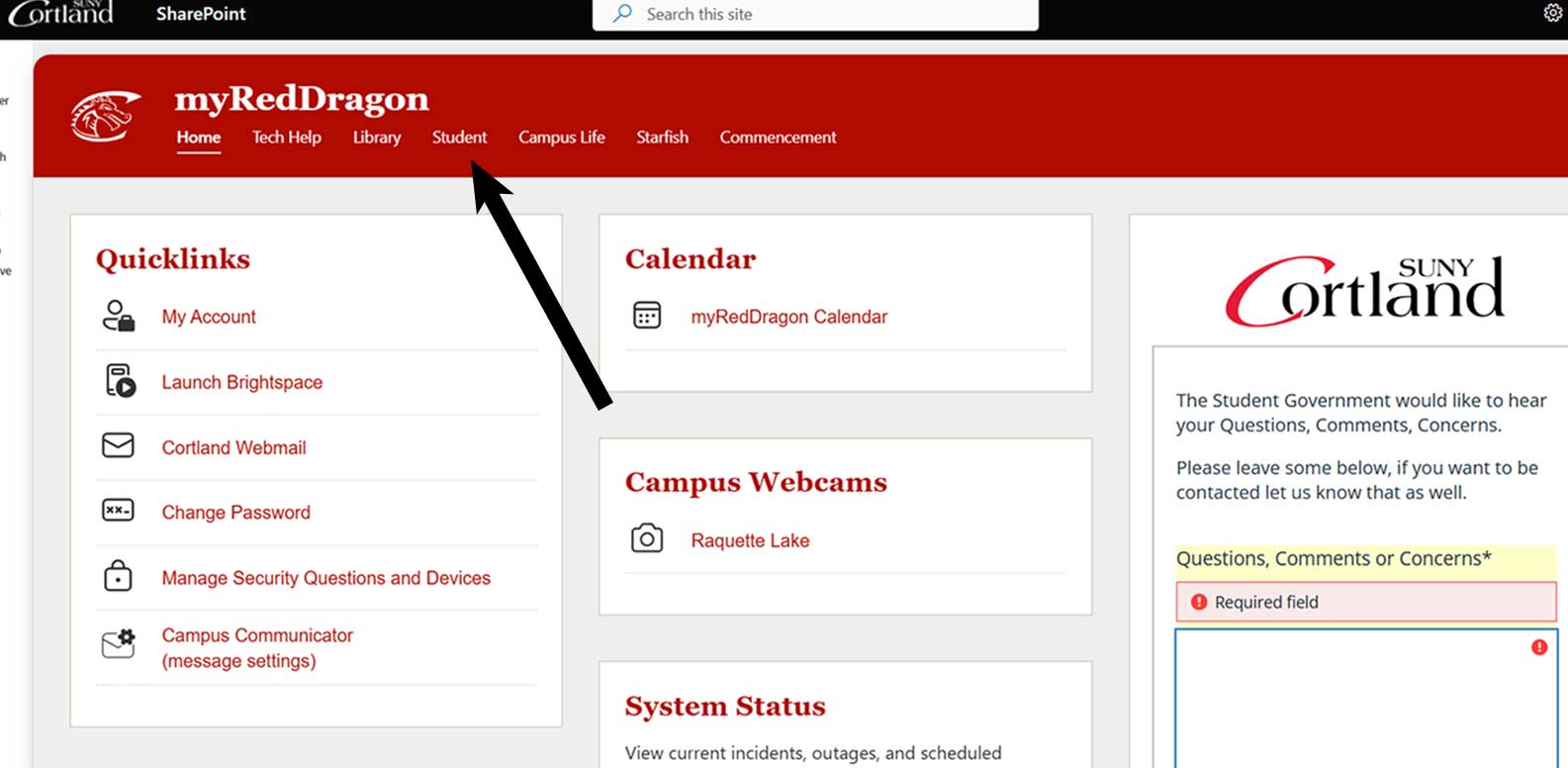
2. Select the Student tab. Your homepage may look slightly different.
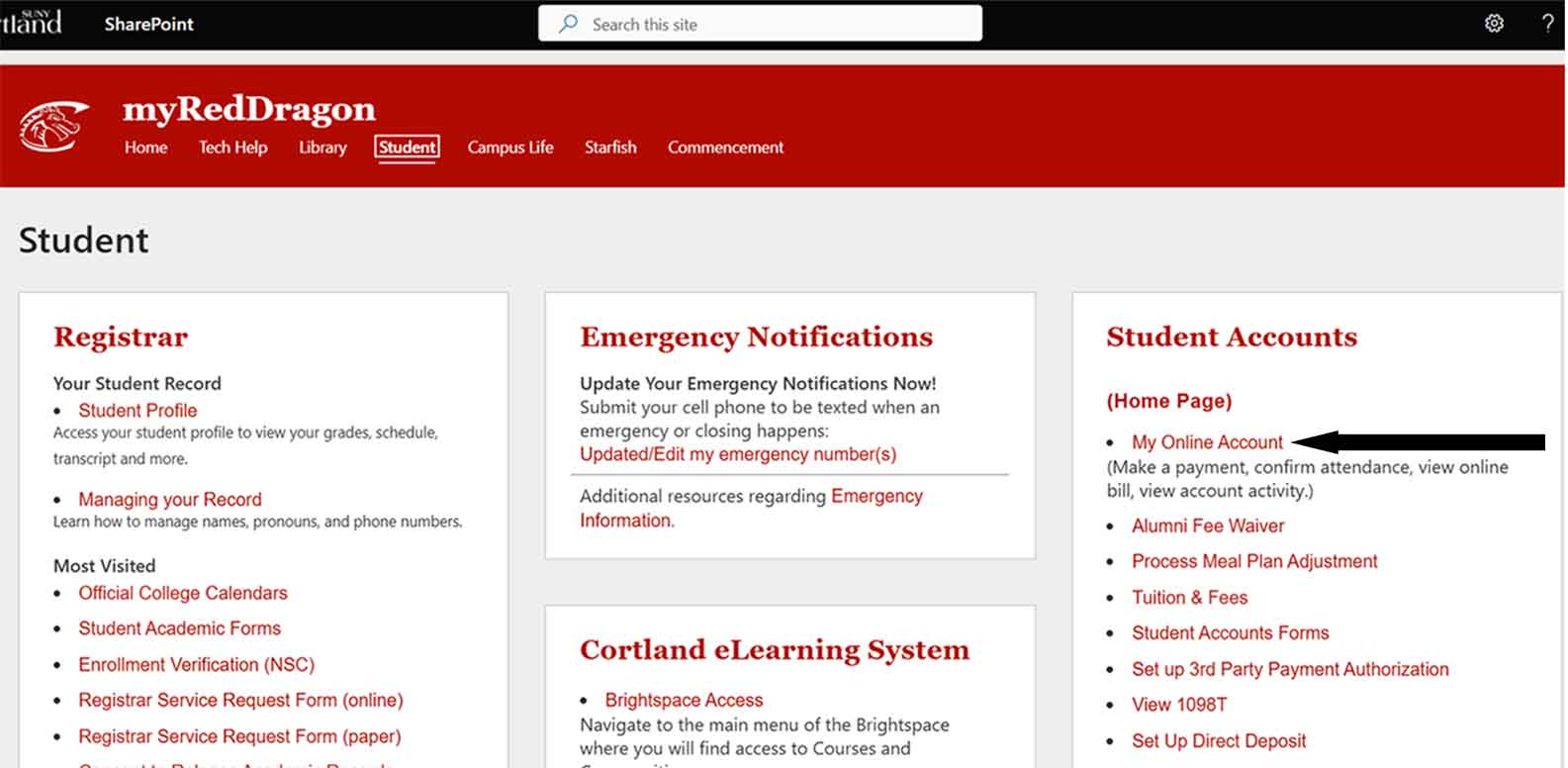
3. From the Student Accounts channel, select “My Online Account or “Set up 3rd Party payment Authorization.”
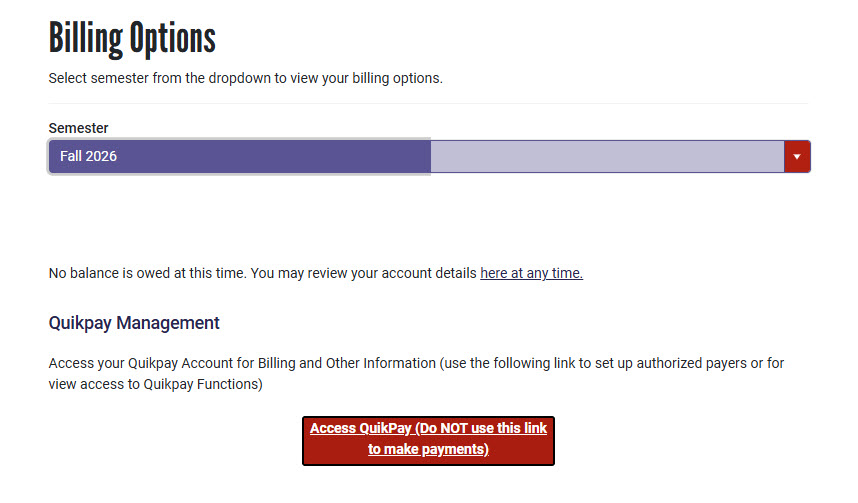
4. Select “Access QuikPay.”
5. Select “View Accounts.”
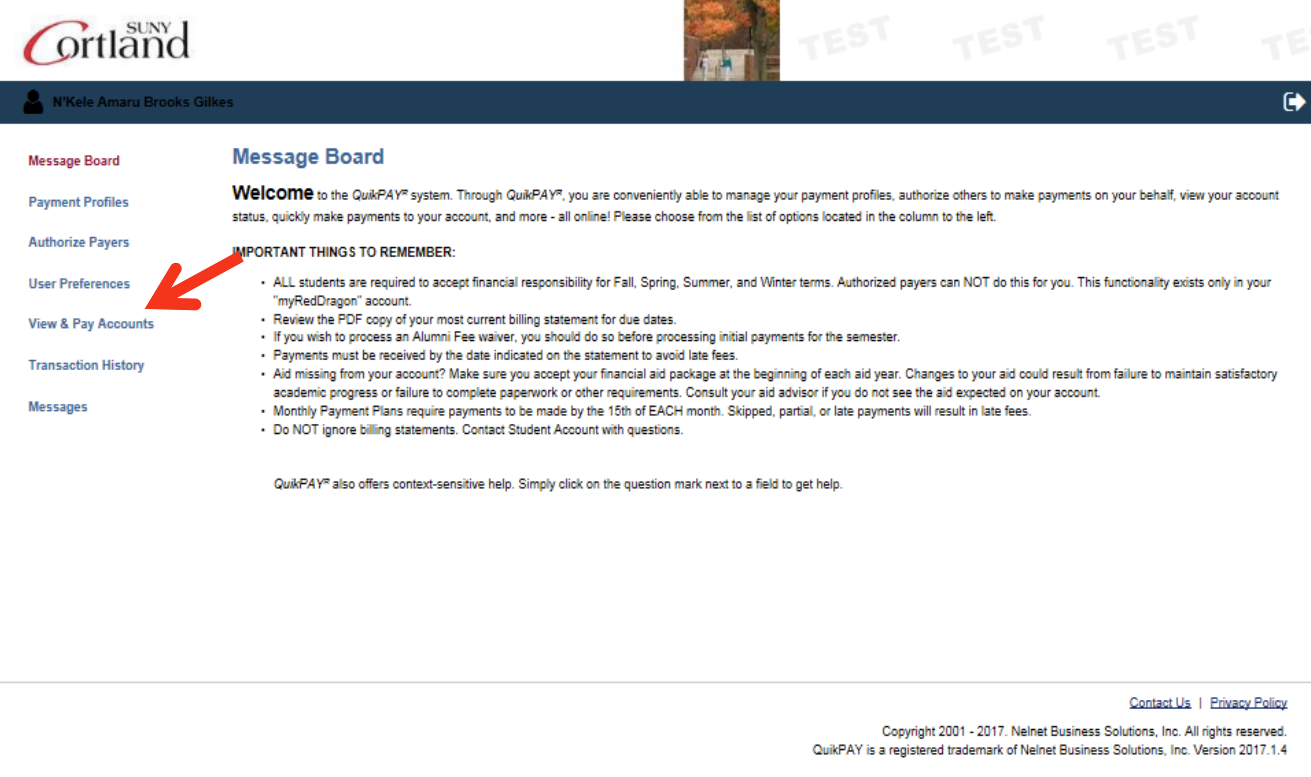
6. Select Statement History tab and choose Most Recent Billing Statement.
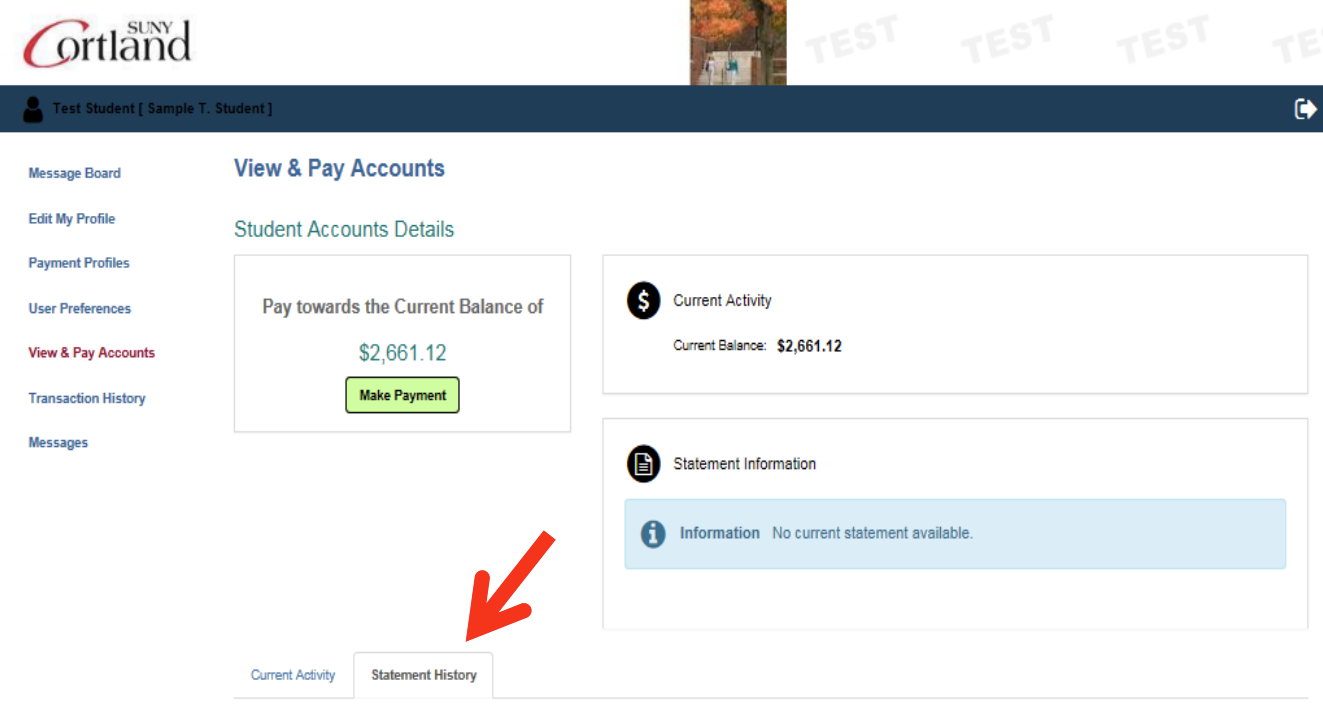
7. Select the PDF icon under Printable Statement.