This guide outlines how to use Red Dragon Depot, SUNY Cortland's e-Procurement system, to complete purchasing transactions from order creation through receiving.
Login
- Login via myRedDragon (Faculty/Staff tab)
- Right-hand column, Important Links, under myRedDragon Resources, click Red Dragon Depot (Purchasing)
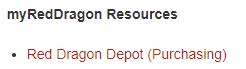
- Right-hand column, Important Links, under myRedDragon Resources, click Red Dragon Depot (Purchasing)
Catalog vs. Non-Catalog
- Catalog – 2 types:
- Hosted – lives on our system (Central Stores, NYSPSP)
- Punchout – takes you to their website to shop and then back to RDD to checkout.
- Use P-Card for Amazon & Staples
- Use PO for WB Mason
- Non-Catalog (all other vendors – PO only)
- Searching for Vendors under Non-Catalog Items
- Under Search Bar, Go to: Non-Catalog Items
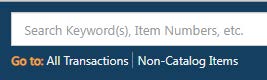
- Type part of the vendor’s name
- Less is more and don’t use punctuation.
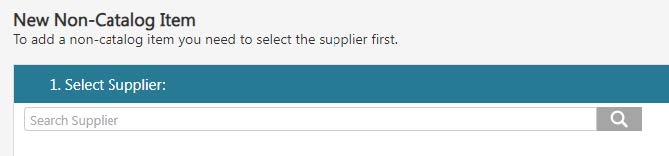
- Less is more and don’t use punctuation.
- Can’t find your vendor?
- Request a W-9 from the vendor and send it to Purchasing.
- Type part of the vendor’s name
Creating a PO
- Non-Catalog Item (Catalog steps are similar, but skip to Checkout after punching out to website)
- Search & select vendor
- Add Item(s)
- Fill out left side:
- Item/Service
- UOM = EA
- Qty
- List Price
- Click Add to Cart
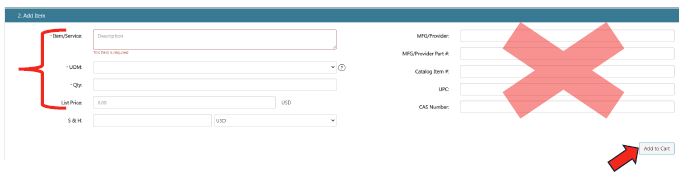
- Add more items, if needed.
- Proceed to Cart & Checkout

- Fill out left side:
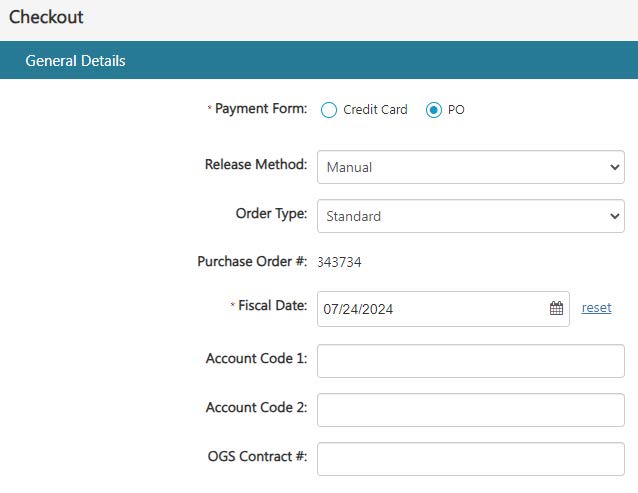
- General Details Tab
- Payment Form = PO
- Add Account Code 1 and Account Code 2 (if splitting accounts, not common)
- Add OGS Contract #
- Add Vendor Quote #
- Continue
- Continue
- Delivery Details Tab
- Select Central Receiving (and confirm the attention to is correct for Central Receiving to deliver to you on campus)
- Continue
- Billing Details Tab
- Select Accounts Payable
- Continue
- GL Details Tab
- Enter Account # in the favorite’s Bar or click on the + symbol to search for Account #(for 1st time using an account #)
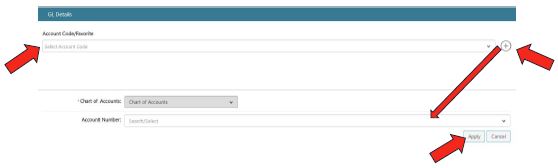
- Apply
- Continue
- Enter Account # in the favorite’s Bar or click on the + symbol to search for Account #(for 1st time using an account #)
- Line Item Details Tab
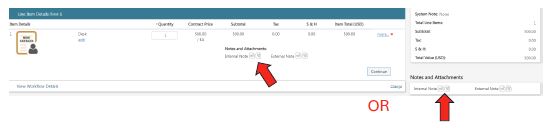
- Notes & Attachments
- Can add Internal Note and/or Attachments on the Line Item itself or off in the right-hand column
- Can add Internal Note and/or Attachments on the Line Item itself or off in the right-hand column
- Notes & Attachments
- View Workflow Details Tab
- Shows approval status (if you don’t see your approver listed, contact Casey Avery prior to submission).
- Click Submit
Transaction Released Email
-
- Email from [email protected]

NOTE: PO is not immediately sent to vendor
- Purchasing must first encumber funds in the SUNY system and then the Purchasing AA will email or fax PO and cc: PO requester.
- Email from [email protected]
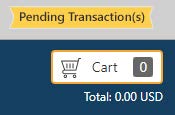
Pending Transaction(s)
-
- If you see the Pending Transaction(s) banner, you have not submitted your order yet.
- Click on the banner to select the PO
.jpeg?language_id=1)
2.jpeg?language_id=1)
- If you no longer need the order, you can click on the icon and delete the transaction.
Order Summary
-
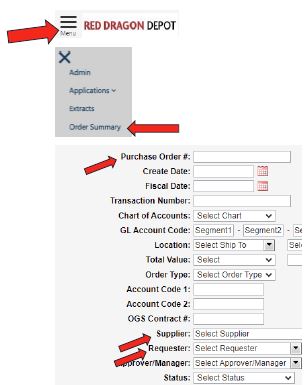
- Search orders (old & new) – by requestor, PO#, vendor, etc.
- View Workflow – see dates approved or who with currently
- Active = current approver PO is with
- Active = current approver PO is with
- View Workflow – see dates approved or who with currently
- Search orders (old & new) – by requestor, PO#, vendor, etc.
Receiving
-
- Once item/service is actually received, immediately go into RDD to receive it.
- Once order is completely received or confirmed nothing more to receive, Close order.
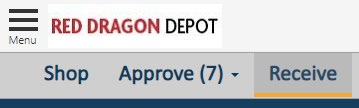
- To Receive:
- Select your PO
- Under Line Item Details Tab, receive either against the Quantity or Dollars and click Update
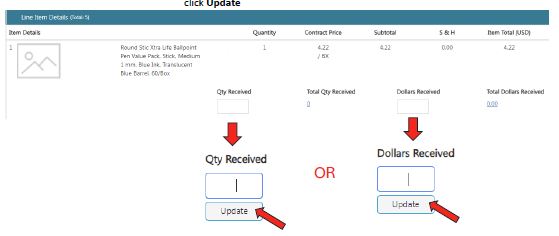
NOTE: AP cannot pay invoice until the item/service is received in RDD.
- Under Line Item Details Tab, receive either against the Quantity or Dollars and click Update
- Select your PO
- Once order is completely received or confirmed nothing more to receive, Close order.
- Once item/service is actually received, immediately go into RDD to receive it.
Standing Orders
-
- Must add “Standing Order” verbiage in the Item/Service Description
- Qty should = 1 with total estimated dollars to spend over the FY (can always add funds with a CO)
- Receiving against Dollars as invoices come in
Change Orders (CO)
-
- Used to increase or decrease PO amounts
- Complete the Change Order Request Form
- Used to increase or decrease PO amounts
Changing Departments/Offices/Approver
-
- Immediately notify the Associate Director of Purchasing and Accounts Payable (Casey Avery) of the following changes:
- Location on campus changes
- Approver changes
- Name changes
- Immediately notify the Associate Director of Purchasing and Accounts Payable (Casey Avery) of the following changes:
RDD Username Info
-
- First Name will be your first and last name
- Last Name will be your location on campus
- DO NOT change this as it affects your POs and items may not be delivered to the correct place from Central Receiving.
Paying an Invoice
-
- DO NOT upload invoices to RDD (unless approved as an NOR – see NOR Policy)
- Purchasing without a PO in place bypasses the purchasing process and could result in having to use other funding sources to pay invoice.
- Invoices should be emailed directly to [email protected].
- AP will not see an invoice attached to a PO after the PO has already been approved.
- DO NOT upload invoices to RDD (unless approved as an NOR – see NOR Policy)