Curriculog Actions
Committee Members can use Curriculog to:
- receive notification that curriculum has reached the committee step
- review curriculum and comments
- make comments and record a Preliminary Discussion vote
Access Curriculog
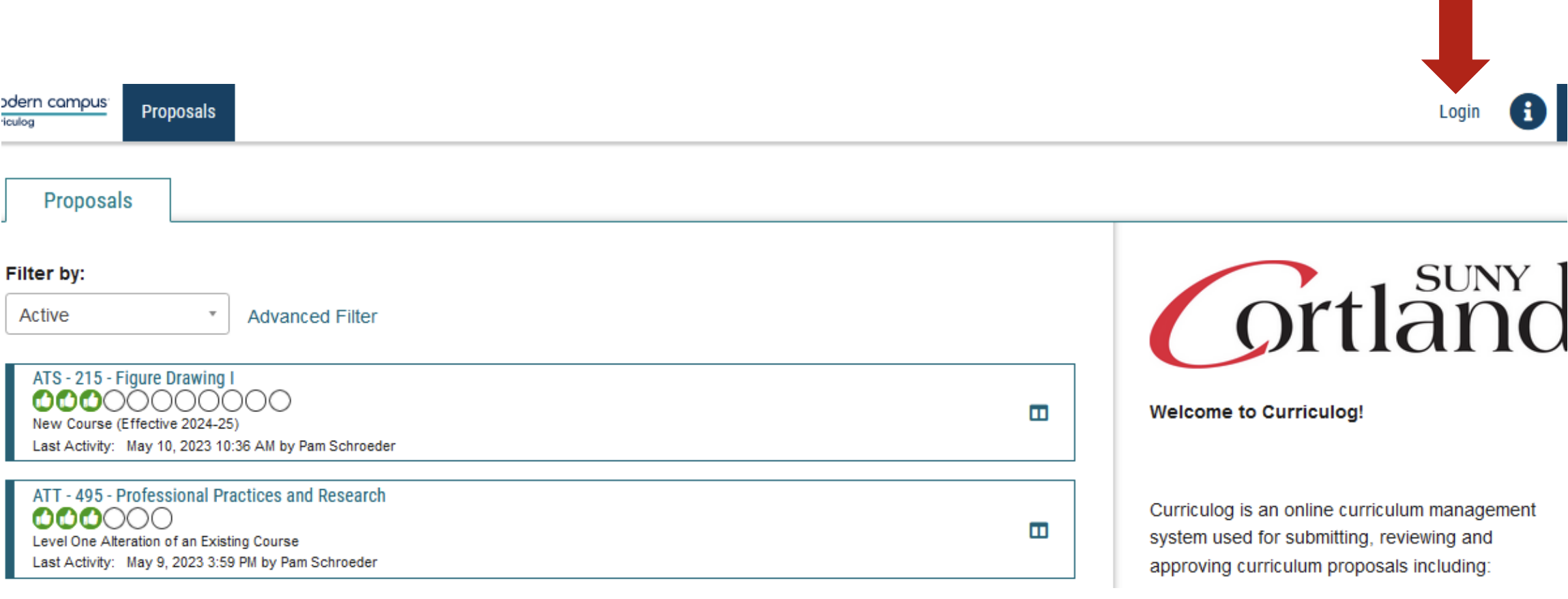
- Log in at the Curriculog website
- Your user name is your Cortland email address and the password is curriculog. It is recommended that you change your password
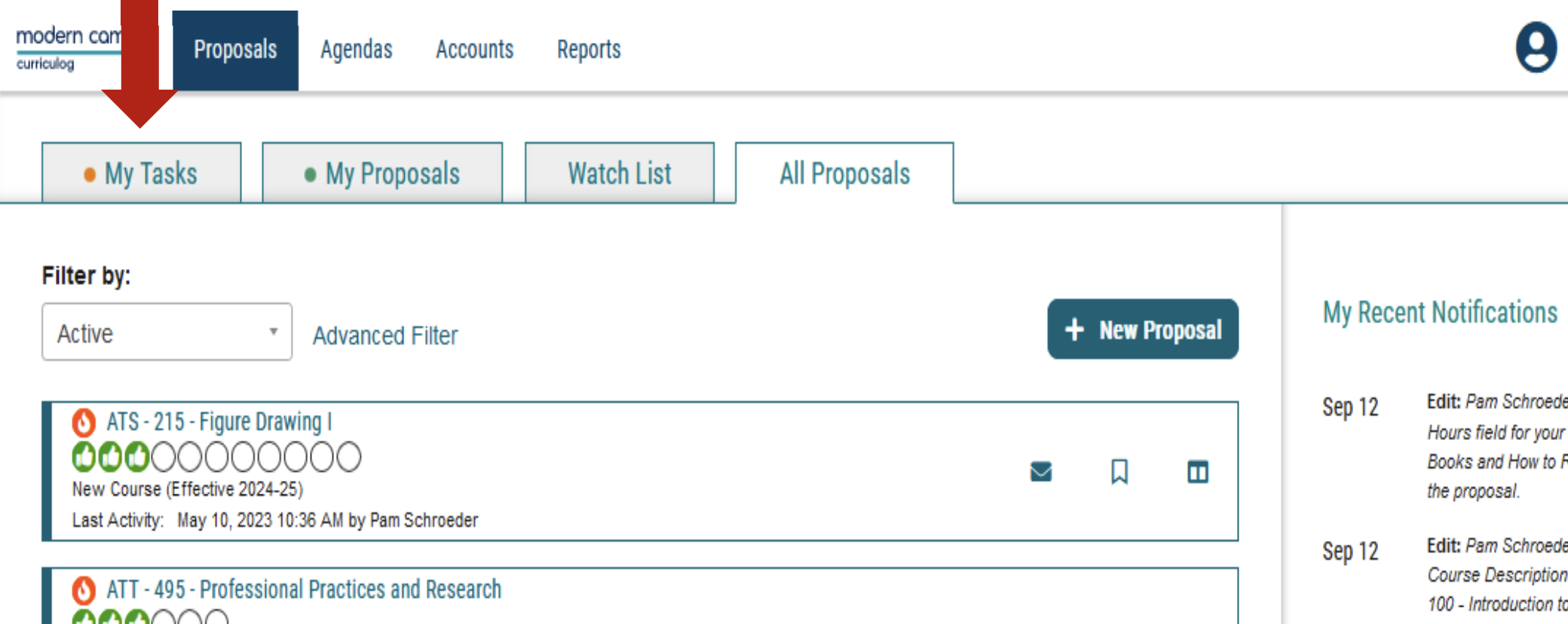
To access your tasks associated with your specific committee, select the “My Tasks” option
Critical steps for Committee Members
- Proposal lands on the Committee Preliminary Discussion Step
- To view a proposal, hover over the proposal title in the list on the left pane of the dashboard.
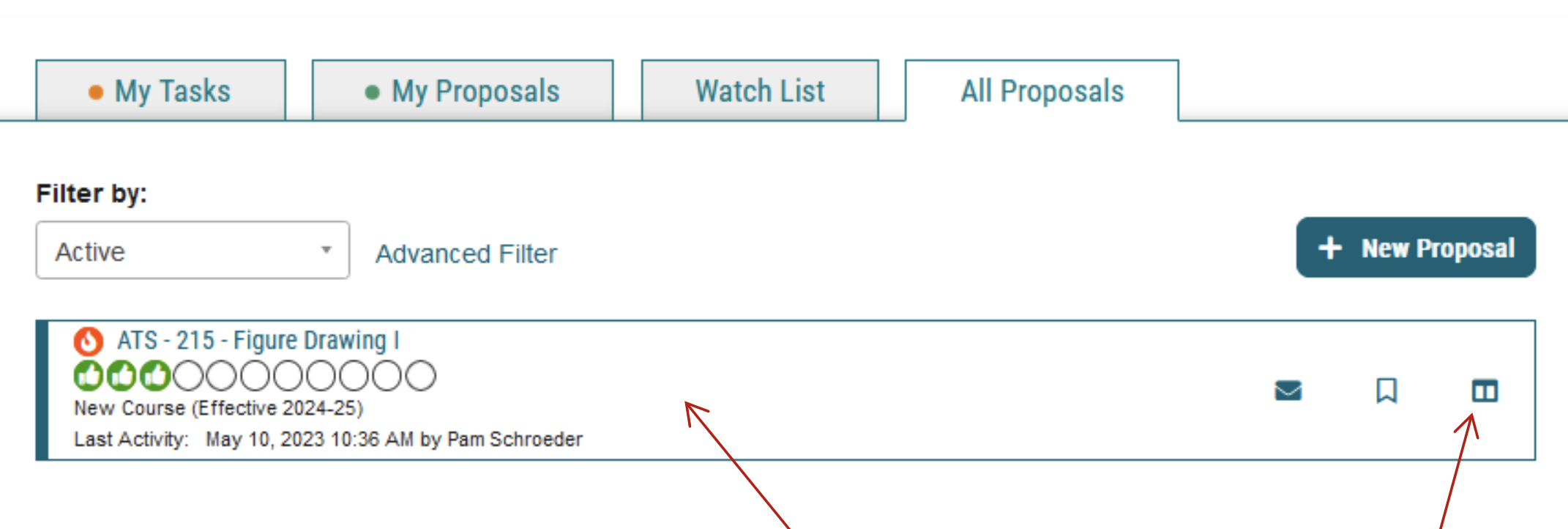
- The blue notebook icon is View Summary—a quick overview (appears in the right pane).
- Hover over proposal name and click once to Open/View Proposal—opens the entire proposal for full review, comment and vote.
- With the proposal now open, you can see all details included in our standard curriculum forms. As a Committee member, some of the common features you may frequently use include:
- Discussion: you can view the proposal in its: 1) original version; 2) Current version; or 3) Current with mark up. You can also view or reply to an existing comment(s) made by others, or add you own comment.
- Workflow Status: you can see all the approval steps, as well as when/who approved a previous step
- Files: you can view all attachments that have been uploaded to the proposal. The committee chair is able to add additional attachments, if needed.
- Decisions: you indicate your opinion and provide a comment to indicate where you stand at this point in the discussion. The Committee Discussion comments and opinions do not lead to Committee approval—that is only done at the next step and only by the Committee Chair on behalf of the Committee.
Your official vote on any proposal occurs during the in-person Committee meeting and the Committee decision is recorded in Curriculog by the Committee Chair.
In most cases we advise not to reject the proposal, but rather have it sit at the committee level, while requested changes are sent back to the committee. In rare instances, where a proposal is not appropriate or completely wrong, it can be rejected, which may send it back to the originator to make edits, or to delete and start over.
- When you reach the Prospective Curriculum field (for new programs or program alterations), three icons are available giving you viewing options (left to right):
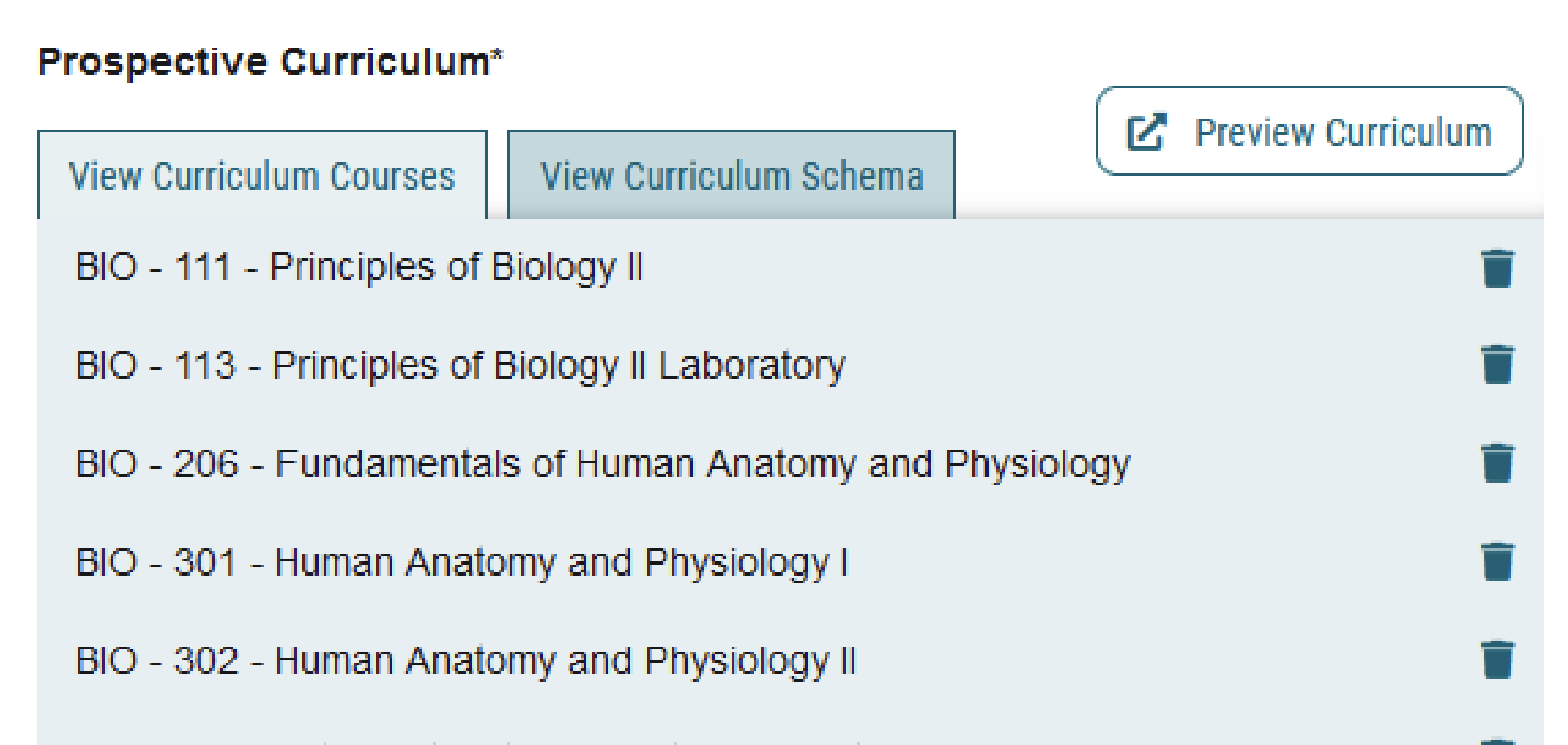
- View Curriculum Courses: displays all courses, as a cumulative list, currently available in the program.
- View Curriculum Schema: displays all current cores within the program. Click on the core name once to display the core description (if any) and courses associated with the core.
- Preview Curriculum: opens a pop-up window displaying the current program curriculum (as it will appear in the college catalog). Within this option, clicking on the icon allows you to see markup changes. In this view, green text shows the addition of text/courses, while red text shows text/courses to be removed.
- To view a proposal, hover over the proposal title in the list on the left pane of the dashboard.
- Proposal moves to Committee Chair Step for Approval by Chair
- The Committee will meet, discuss and vote on the proposal to approve to move it to the next step.
- If the committee has recommendations for edits, this can only be done at the Committee Chair step. If the Committee has questions about a proposal, the Chair should consult the originating department Chair.
- The Committee may “Hold”the curriculum at this point pending consultation or Hold and provide a comment that there is a contingent pass.
- Email is best –When requesting clarification or additional information regarding a proposal, please send an email to request the information. All comments or information received as a result of the hold or contingent pass should be edited in the appropriate field, with the email exchange uploaded as an attachment.
- Only chairs may edit proposals in Curriculog.
- Once a proposal is approved through a committee vote, the Chair will record the vote on behalf of the committee within the proposal. This action will move the proposal to the next step in the approval process.
Committees will continue to record and share minutes from meetings as they have done in the past.