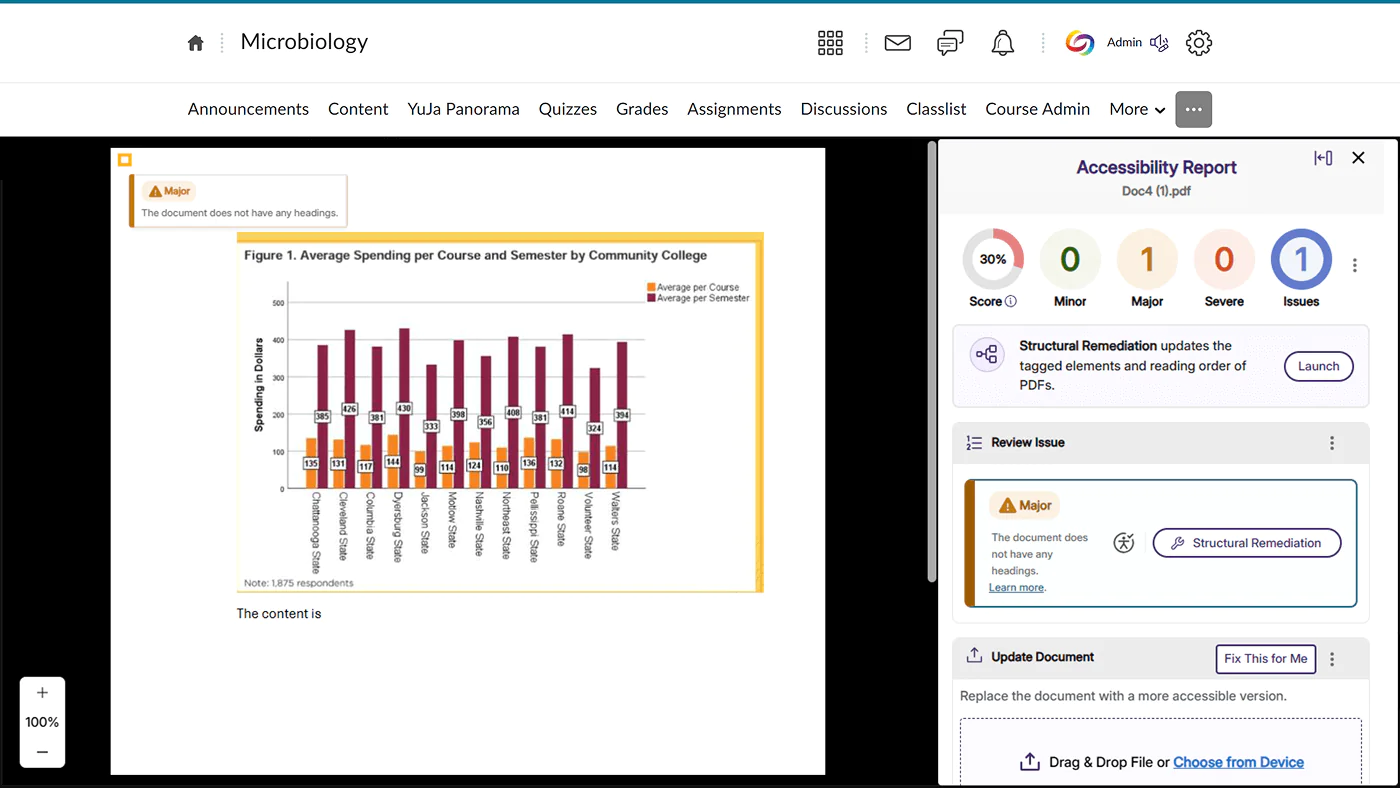
Highlights
- Your hard work carries over. Panorama will still recognize the headings, alt text, and documents you already fixed in Ally, so none of that effort goes to waste.
- Nothing to do before the switch. SUNY handles the migration on December 21. Expect scores for Winter and Spring 2027 courses around the second week of January.
- A different number doesn't mean a worse course. Panorama checks more content and scores it differently, so treat a lower score like a new bathroom scale: the number moved, but you didn't.
- Fix files right in Brightspace. You can edit PDFs, Word, Excel, PowerPoint, and HTML files in place. AutoPilot also suggests AI-powered fixes, and nothing changes until you approve it.
Cortland is moving from Ally to YuJa Panorama, the accessibility tool built into Brightspace. If you've spent the last few semesters turning Ally gauges green, thank you! That work matters, and it isn't going anywhere.
Regardless of which tool is being used, accessible course materials help everyone. While different accessibility checkers vary, you can assume all of them will usually check for the same 'basics':
- Use real headings (Heading 1, Heading 2) instead of bold or large text. This helps students using screen-readers easily navigate through a page in the right order. Imagine reading an academic article as a massive wall of text!
- Add meaningful alt text to images that carry information. This helps students with visual and/or cognitive impairments to take in any content embedded in an image or figure. Good luck understanding a paper with all the figures hidden!
- Write descriptive links, like “Week 3 reading guide” instead of “click here.” This ensures students using screen-readers can appropriately navigate to the correct content and avoid 'spam' links. Nobody likes clicking on suspiciously named links.
- Check color contrast, and don't rely on color alone to share information (did you know that emojis are accessible?!) This ensures students with visual impairments/colorblindness don't miss whatever information is being communicated via color.
- Caption your videos and check that the captions are accurate. This ensures that students who are hearing-impaired can access whatever is being communicated through audio. Imagine trying to make sense of a muted lecture!
Our article “Title II Quick Fixes” walks you through these and more!
Here's what's changing with the new tool, why your score might look different, and where to get help.
About Panorama
Panorama comes from YuJa, the company behind the video platform you may already use at Cortland, but it's a separate tool. Like Ally, it lives inside Brightspace, checks your content for accessibility issues, and suggests fixes. It includes:
- Accessibility scores and a course dashboard that flag issues in your content.
- Alternative formats that let students download your materials in formats that work better for them, such as audio.
- Inline document fixes for PDF, Word, Excel, PowerPoint, and HTML files, right in Brightspace.
- AutoPilot, which uses AI to suggest fixes that you review and approve.
- DocHub, a space where you can check documents outside of a course.
The Transition
Why are we switching?
- SUNY's system-wide contract with Ally ends in December 21, 2026. After a competitive review with representatives from across SUNY, Panorama was selected mid-October 2026 as the new tool, so every SUNY campus is making this move together.
When is it happening?
- We expect to switch by December 21, 2026, after finals. The exact date depends on coordination with SUNY's Brightspace administrators, and we'll update this page and email you once it's set.
What happens to my Ally reports?
- Ally will be turned off when Panorama is turned on.
- If you would like a copy of your Ally report for posterity, please follow the instructions in this Ally knowledge-base article. The Center for Teaching and Learning will also keep a copy of the reports so we can send you a copy (contact [email protected])
Is there anything I should do before the switch?
- No. SUNY will migrate us to the new system on December 21st. This will take time.
- We are prioritizing new courses, so you should look for the scores on your Winter 2027 and Spring 2027 courses around the second week of January. You will not get an accessibility score from YuJa right away as each course will be undergoing review simultaneously.
Your Accessibility Score
Why does my score look different?
- Panorama checks some types of content that Ally didn't, and it scores issues in its own way. Think of it like stepping on a new bathroom scale: the number may shift, but you didn't change.
- For example, say your course scored 98% in Ally. The day Panorama goes live, you log in and see 85%. Nothing broke. Panorama is simply looking at more of your course and has found a few new items to review.
- Just as with Ally, it’s important to remember that accessibility checkers are not perfect. The best way to determine whether your course is compliant is to follow the WCAG 2.1 Level AA Guidelines, and ask us for help. We’re always happy to answer any questions you have.
Did my Ally work go to waste?
- No. All of the work you did with Ally to make your course accessible still counts, and we thank you for it! The alt text (short image descriptions read aloud by screen readers) you wrote, the headings you added, and the documents you fixed are all still accessible, and Panorama will recognize them.
Do I need to hit 100%?
- Your score is a helpful guide, but the real goal is to ensure that every student can use your materials. Treat what Panorama flags as a to-do list, not a grade.
What should I fix first?
- You don't need to fix everything at once. Start with the content students use most, like your syllabus and weekly materials, and with the issues Panorama marks as most severe.
What's New in Panorama?
Fix documents right in Brightspace
- You can make many accessibility fixes to PDF, Word, Excel, PowerPoint, and HTML files without downloading, editing, and re-uploading them.
AutoPilot
- AutoPilot is an AI tool inside Panorama that assists with document remediation. While it automates many ‘fixes’ it doesn't change anything until you approve it. You know your content best, so give each suggestion a quick look first, especially alt text. AI can describe what an image shows, but not always why it's there.
DocHub
- Upload any document to check its accessibility outside of a course, so you can test a document’s accessibility before it affects your course’s accessibility score. Unlike Ally, DocHub is open to students and staff, too.
Students and Staff
Will students still have access to alternative formats?
- Yes! Students can still download the same alternative formats they used before, plus new formats, including “podcast.” When the blue circle icon appears next to your document, alternative formats are available to your students.
Can students and staff use Panorama?
- Yes, through DocHub. Students can check their documents before posting, building accessibility skills that will serve them in any field. Staff can check documents that they need to share widely via email or on the website.
Training and Support
Will there be trainings?
- Yes! The Center for Teaching and Learning will offer Panorama trainings in December and January, with more to follow, so stay tuned.
Where can I learn more?
- Visit our digital accessibility resources
- Check out our “Title II Quick Fixes” guide: https://www2.cortland.edu/centers/ctl/resources/instructional-design-resources/title-ii-quick-fixes
- Reach out to a CTL instructional designer for one-on-one help.
Have a Question About Panorama?
We want to hear from you! Send us your questions or comments, and a CTL staff member will get back to you. We'll also use your questions to keep this page up to date.
Form link: Questions about Transitioning from Ally to Panorama – Fill out form